Thunderbird is a powerful desktop email, calendar and contact management app for Windows, MacOS and Linux. This article explains how to setup and use Thunderbird with MailSite to synchronize email, calendars and contacts.
1. Download: Download the Thunderbird Desktop client from this website: https://www.thunderbird.net
2. Install: Follow the instructions to install Thunderbird, then open the app on your computer.
3. Add Account: When prompted, Add your first Email account:
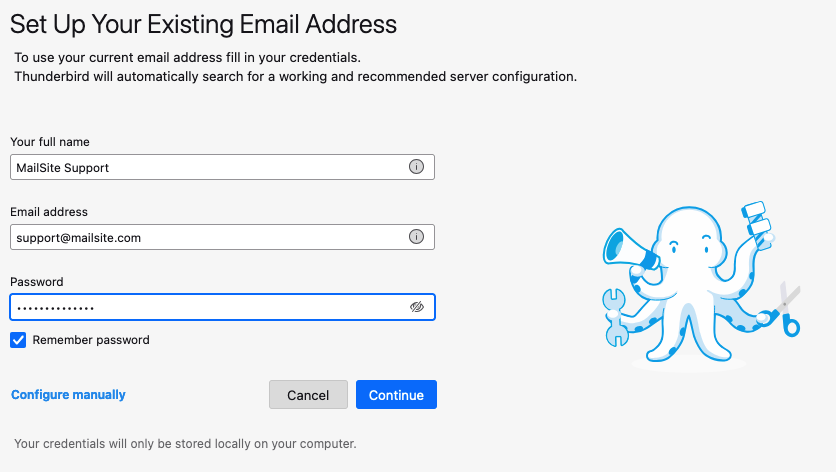
If your administrator has setup auto-discovery for Thunderbird then click on Continue, otherwise click on Configure manually:
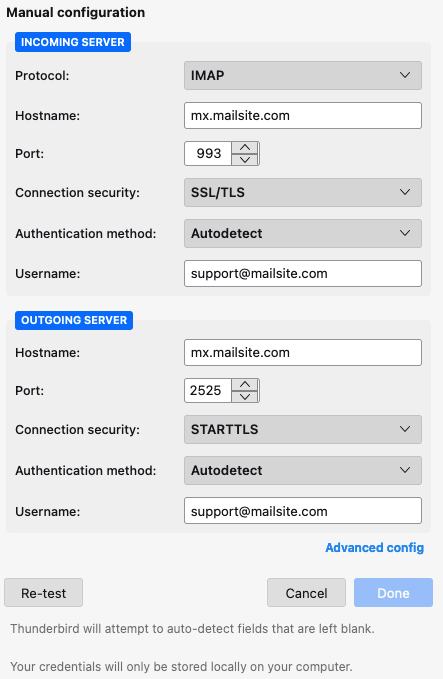
You should now have your email syncing with Thunderbird using the IMAP protocol.
You will need a MailSite license with the ActiveSync option. If you purchased this option, then you can proceed to sync calendars and contacts.
4. Install Extensions: Install these two Thunderbird Extensions:
 Provider for Exchange ActiveSync

Open the Thunderbird Tools menu and select Add-ons and themes:
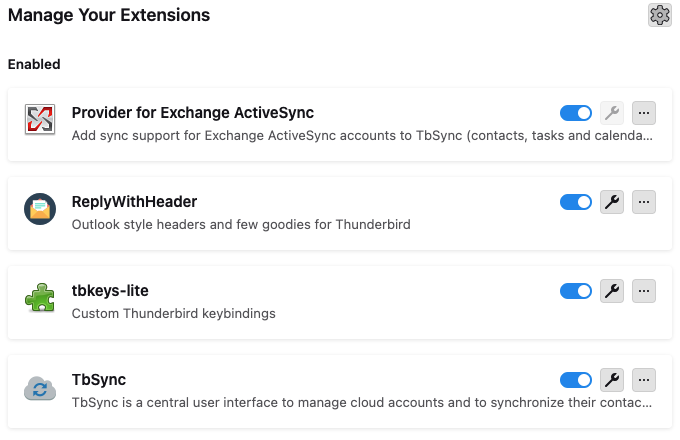
The Provider for Exchange ActiveSync does not require any configuration. Click on the icon to configure TbSync and add an Exchange ActiveSync account:
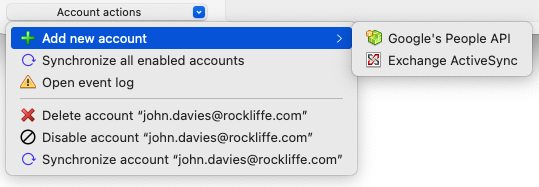
Select Custom Configuration and enter the same Username and Password that you used for IMAP email:
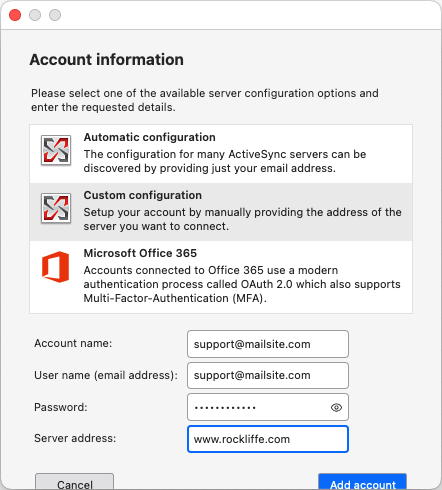
The Server Address should be the same as your ExpressPro website hostname URL.
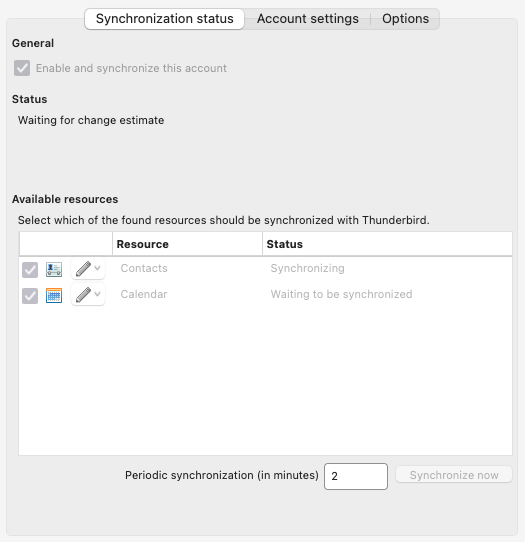
If the Account creation was successful, TB Account Manager should display a Synchronization Status page like this:
5. Congratulations! Now you should see all of your email, Calendar events and contacts in Thunderbird! Any local changes in Thunderbird are automatically synchronized with MailSite and with ExpressPro.