This article describes the procedure to setup an ActiveSync account in Outlook Classic for Windows to connect to MailSite to synchronize email, calendar and contacts. The screenshots are from Outlook Classic 2021 running on Windows 11, but other versions of Outlook Classic and Windows should work the same way.
Before you begin, ensure you have the latest version of MailSite installed on your server and the MailSite Web Services have been installed and registered with Windows IIS. You can verify this by testing two URLs:
- www.yourdomain.com/ExpressPro
- www.yourdomain.com/Microsoft-Server-ActiveSync
The first URL should display the MailSite ExpressPro Login page.
The second URL should display Bad Request.
If the ActiveSync URL is working, proceed to setup Outlook as follows:
In the Search Bar, search for Control Panel:
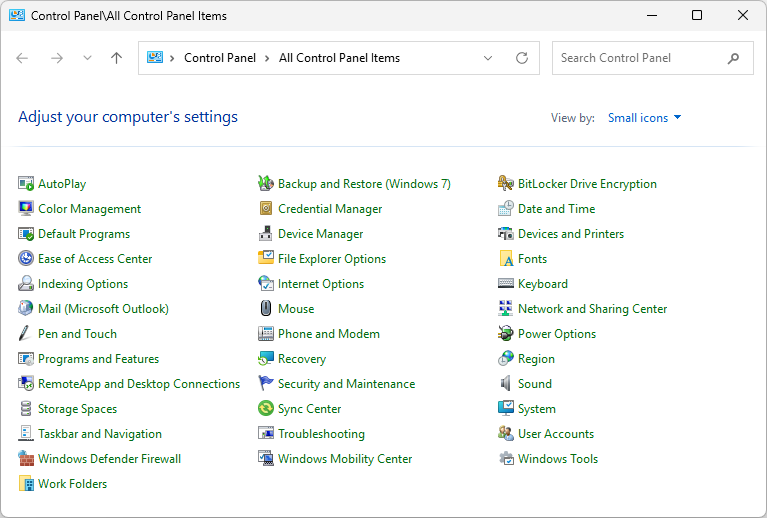
Select Mail (Microsoft Outlook):
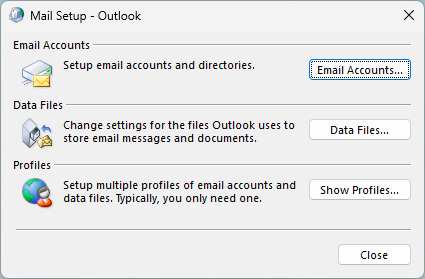
Click on Email Accounts:
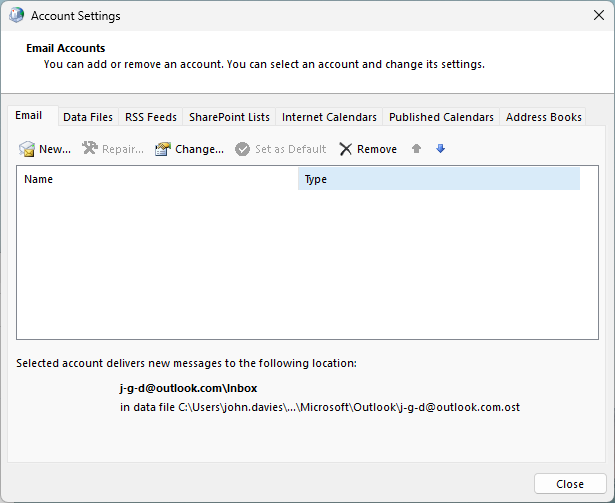
Click on New…
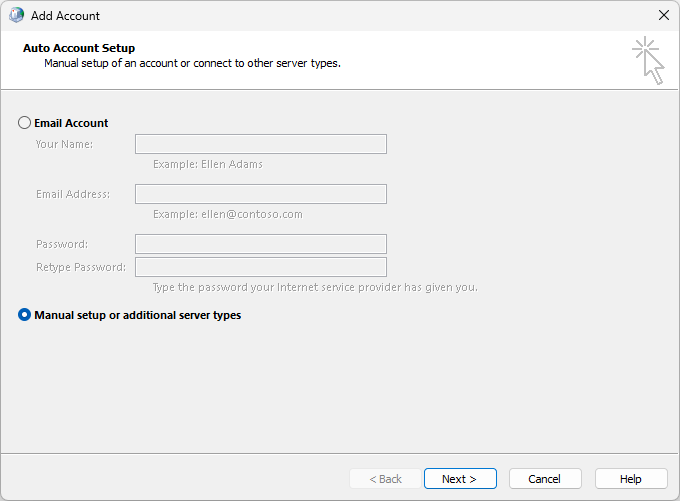
Select Manual setup or additional server types and click Next:
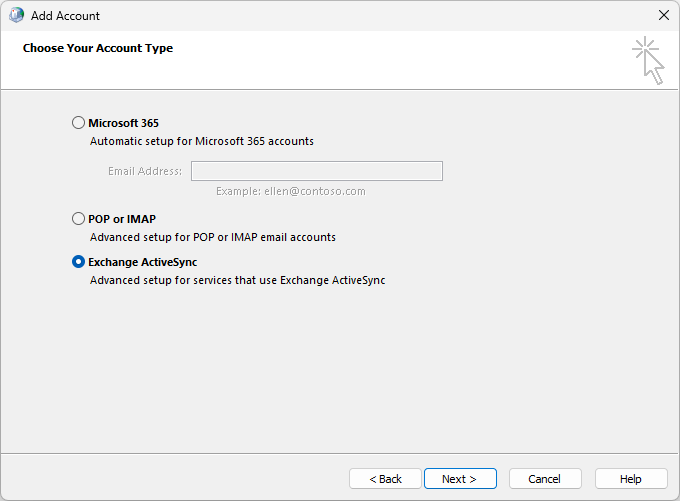
Select Exchange ActiveSync and click Next:
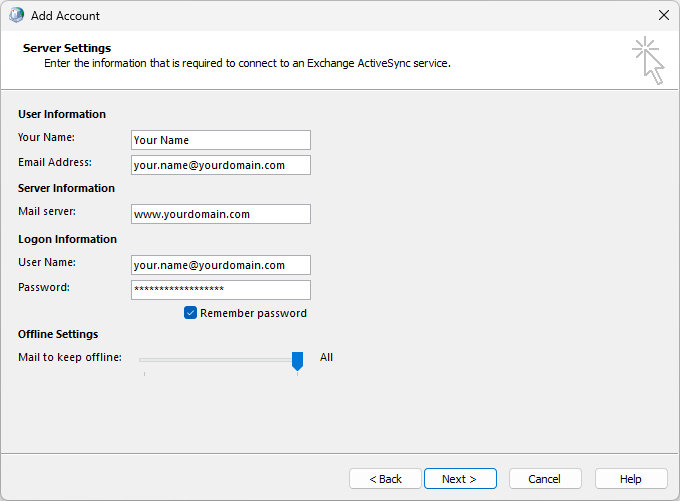
Enter your account and server details and click Next:
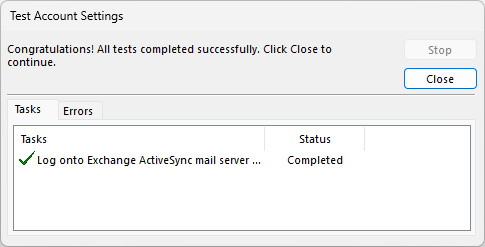
If your account and server details are correct, the Test Account Settings will be successful. Click Close.
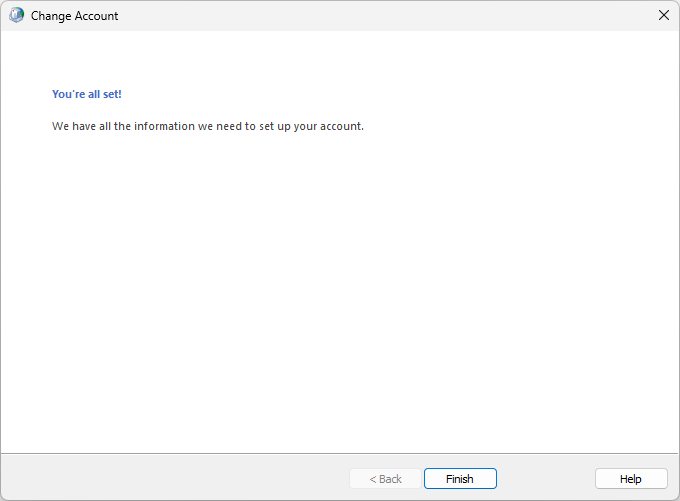
Congratulations, you’re done! You will now have a new Exchange ActiveSync account and Outlook will sync your email, calendar and contacts in the background.